As your company’s product becomes successful, more and more users will interact with the deployed application.
You will reach a point where a single Virtual Machine can’t handle all incoming user requests anymore. At that point, you will need to distribute the requests to multiple VMs, and one way to do that is by using an Azure Load Balancer.
What is Azure Load Balancer?
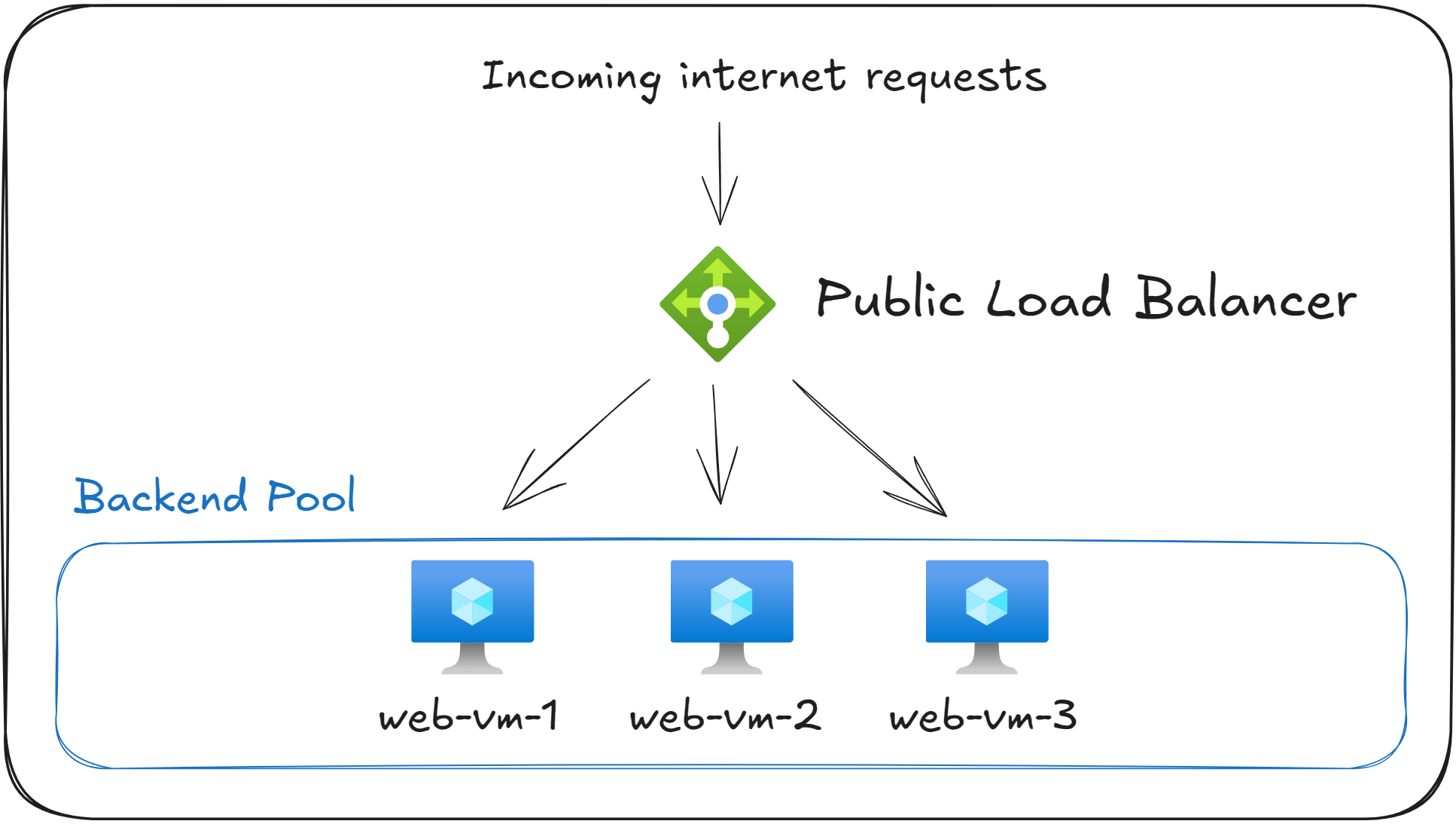
Azure Load Balancer is a service that distributes incoming network traffic across multiple Virtual Machines in order to provide high availability and scalability.
It operates at Layer 4 of the OSI model (the Transport Layer), routing network traffic based on source and destination IP addresses and ports.
You will need to set up a Load Balancer when a single VM can no longer handle all the incoming requests, or when you need to ensure that an application remains available even if one VM is down or unresponsive.
Instead of directing all incoming requests to a single point of failure, a Load Balancer splits the requests evenly across multiple VMs. The group of VMs to which the traffic is sent from the Load Balancer is called the backend pool.
If you are asked to distribute traffic between multiple Virtual Machines based on IP and Port (TCP/UDP), it’s a Load Balancer question. If traffic is split based on HTTP content then it’s about Application Gateway. If it’s based on the closest location to the user, then it’s about Traffic Manager.
Internal Load Balancer
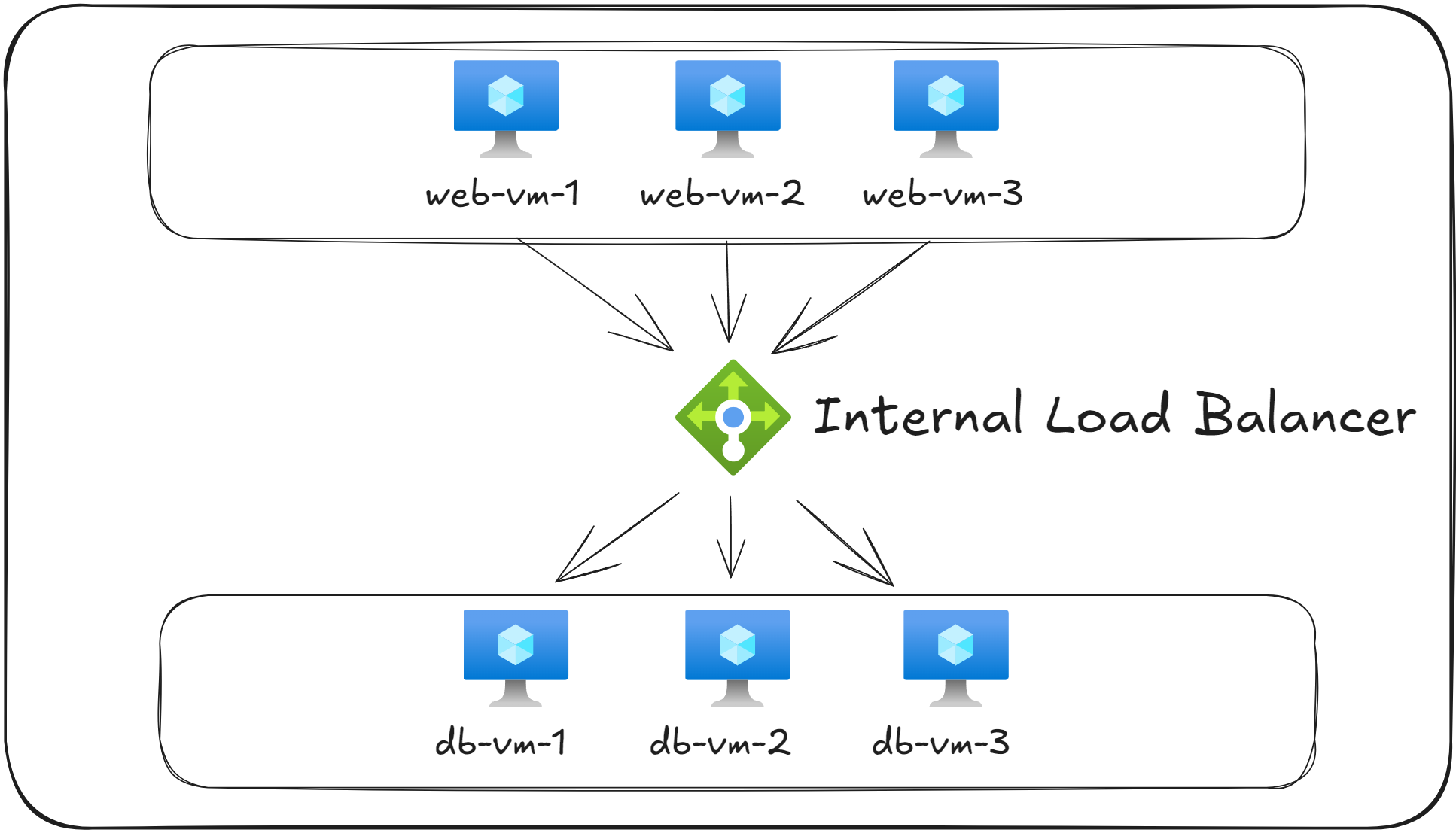
Azure provides two types of Load Balancer, based on how they can be accessed.
|
Type |
Accessibility |
Common Use Case |
|---|---|---|
|
Public Load Balancer |
Has a Public IP Address, allowing access from the internet |
Spread incoming internet traffic to Virtual Machines |
|
Internal Load Balancer |
Accessible only within a Virtual Network (does not have a Public IP) |
Spread incoming traffic from Virtual Machines in the same network |
The Public Load Balancer is designed to handle traffic coming from the internet. It acts as the public entry point to your application and routes incoming requests to healthy VMs in your Azure environment. It’s commonly used for web applications and APIs, ensuring that they are scalable and reliable.
On the other hand, the Internet Load Balancer is not exposed to the internet. It uses a Private IP address and is accessibly only from within your Virtual Network, peered networks, or connected on-premises networks through a VPN Gateway or ExpressRoute. It’s mainly used to distribute requests between internal tiers of an application (such as in three-tier applications).
During your exam, if a question mentions a Load Balancer with a Public IP address, or an “internet facing Load Balancer”, then it’s a Public Load Balancer, otherwise it’s an Internal Load Balancer.
Health Probes
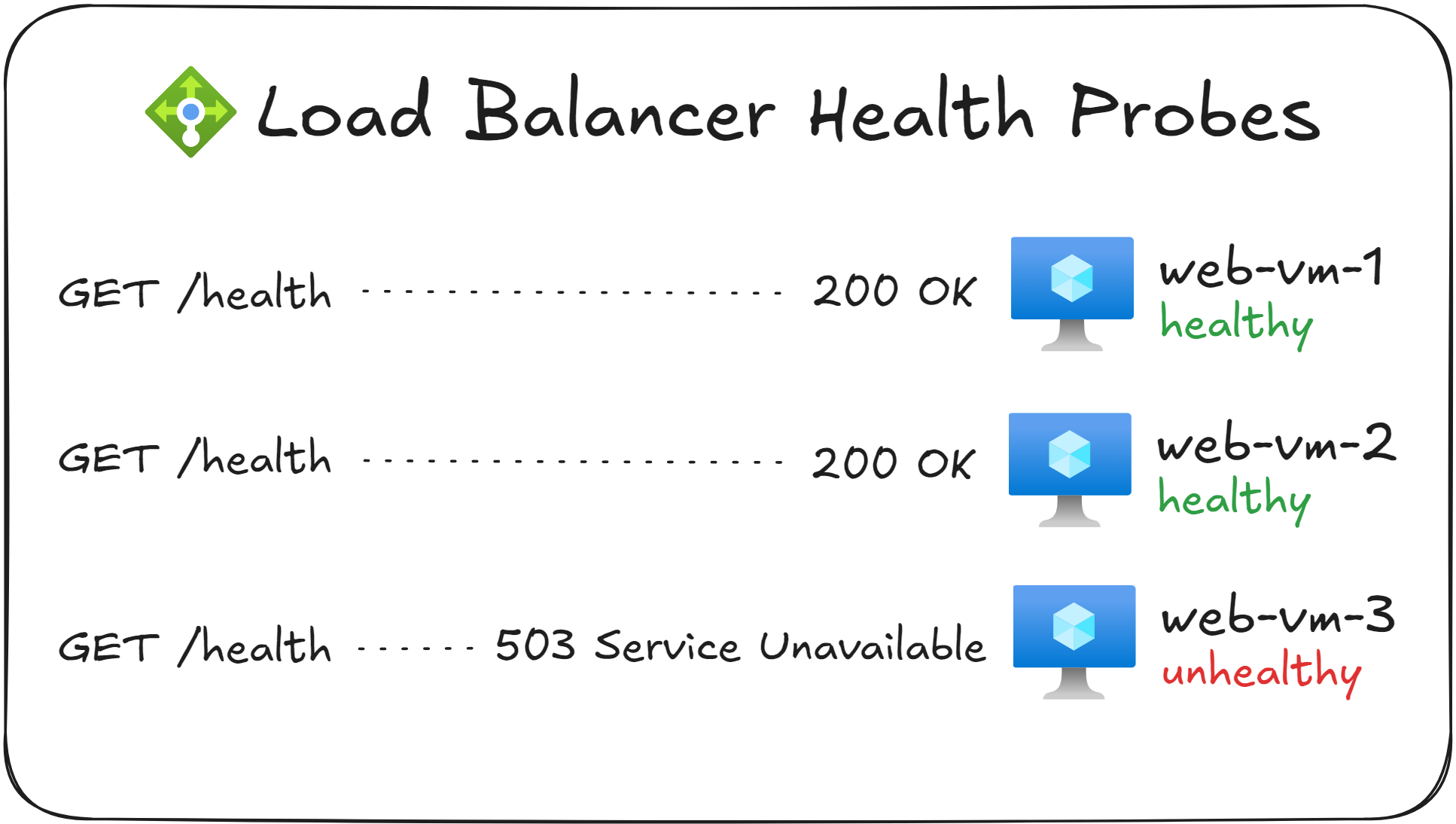
When you configure an Azure Load Balancer, it’s important to make sure that the VMs in the backend pool are capable of responding to incoming requests. A key component that enables this is the Health Probe.
A Health Probe is a feature of Azure Load Balancer that allows you to monitor the status of each VM in the backend pool. It does so by periodically checking each VM instance to see if its healthy and able to process incoming requests.
If a VM fails a health check, it is automatically removed from the pool of available servers. The Load Balancer will then route traffic only to VMs that are marked as healthy. Once an unhealthy VM becomes healthy again, by responding successfully to the probe, it is automatically re-added to the pool without manual intervention.
Health Probes can check the health of a VM using either TCP, HTTP, or HTTPs.
- TCP probes verify whether a connection can be successfully made on a specific port.
- HTTP or HTTPS probes perform a request to a specific endpoint (for example,
/health) and check if a specific HTTP status code is returned.
In most web applications, you configure an HTTP-based health probe that performs a GET request to the /health endpoint, on port 80. If the application responds with a 200 OK status code, the instance will mark it as healthy. If it returns a different status code or fails to respond, that VM will be marked as unhealthy and will stop receiving new requests.
If no Health Probe is set up, the Load Balancer will assume that all instances are healthy, and will send network traffic to any of them, even if they are unhealthy.
Real World Example
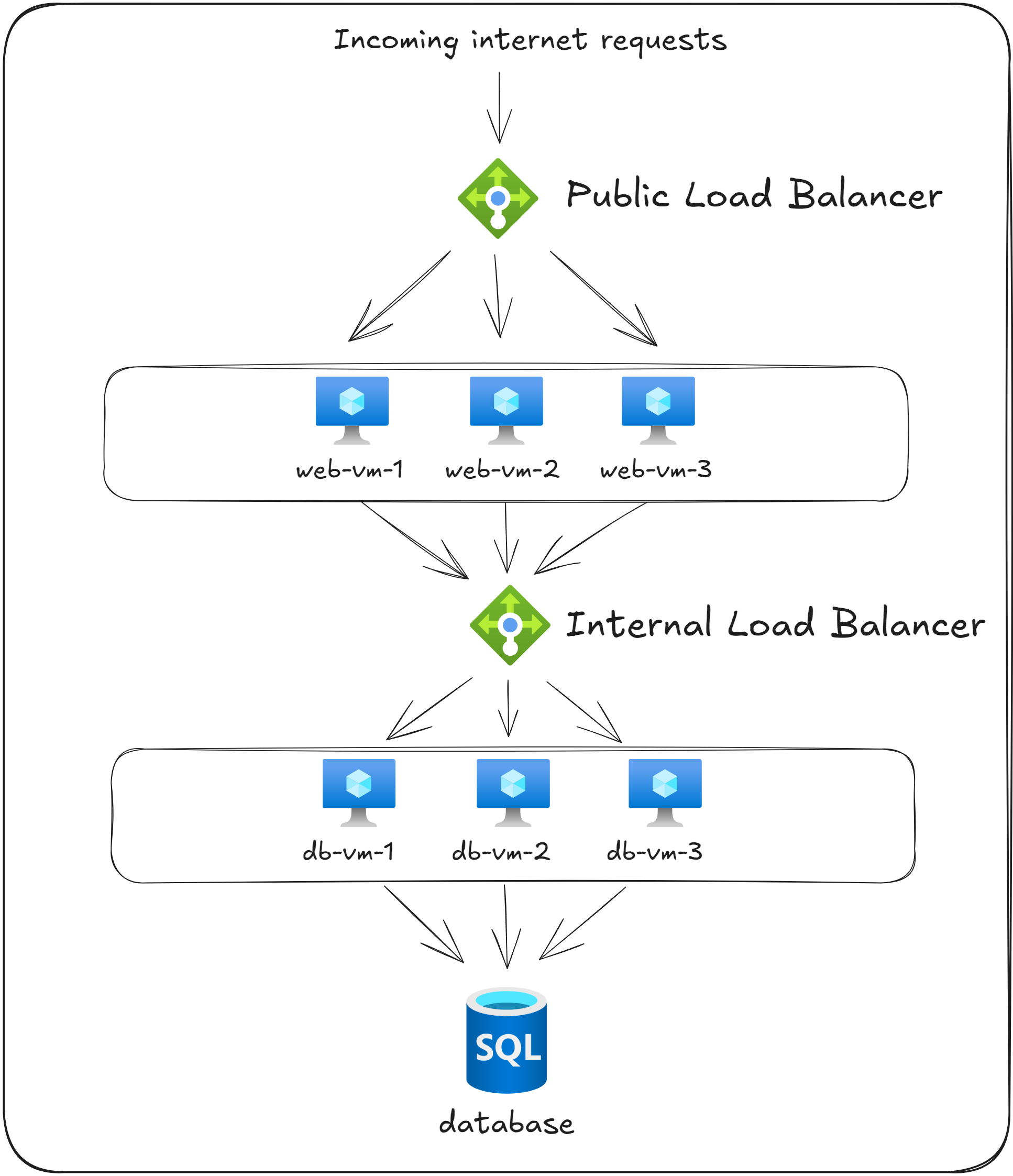
Imagine that your company runs an e-commerce application hosted in Azure. To make sure that the application can handle a large volume of user traffic, you deploy multiple web servers.
To manage the flow of incoming traffic from customers, you set up a Public Load Balancer to evenly distribute incoming HTTP requests from the internet across all web servers in the backend pool (web-vm-1, web-vm-2, web-vm-3).
Behind the web servers, you deploy another tier consisting of database servers (db-vm-1, db-vm-2, db-vm-3). These VMs are responsible for handling all database requests. To distribute this internal traffic, you configure an Internal Load Balancer.
Finally, you set up Health Probes on both Load Balancers to make sure that unresponsive VMs are removed from the backend pools and requests are directed only to healthy VMs.
By setting up this configuration, you create a resilient, scalable solution, that ensures that the e-commerce platform remains responsive and available to users even during maintenance periods or unexpected failures.
Azure Load Balancer cannot automatically deploy new Virtual Machines in case you experience higher than expected traffic. In order to do that, you need to set up a Virtual Machine Scale Set.
What to remember for your exam
- Azure Load Balancer is used to distribute traffic evenly across Virtual Machines (called the backend pool) to ensure high availability and scalability.
- Public Load Balancers are accessible from the internet, while Internal Load Balancers can only be used to distribute requests between tiers of an application inside a Virtual Network.
- Health Probes are used to determine which VMs in the backend pool are healthy by sending TCP, HTTP, or HTTPS requests and checking the response.
- An example of a health probe is checking if the
/healthHTTP Endpoint returns a status code of200 OK, meaning that the VM is healthy.
What’s next?
To lock in what you’ve learned, take the short 8-question quiz for this lesson. It will help you test your understanding of Azure Load Balancer before you move on.
In the next lesson, you will learn how you can distribute network traffic based on HTTP attributes using an Azure Application Gateway.